

How to Get Better-Looking Photo Prints
A sharp photo on your phone does not automatically become a beautiful print. Learn how the original file, print size, crop, screen brightness, paper finish, and printing equipment shape what comes out on paper.
A photo can look fantastic on your phone and strangely disappointing on paper. The faces are a little soft. Someone's head is cropped too tightly. The shadows look darker. The colors do not glow the way they did on the screen.
That does not always mean the printer failed. Good photo printing starts with the file, then depends on the print size, crop, paper, color handling, and the equipment producing the image.
The quick answer is this: send the original photo file, choose a size that fits its shape, avoid enlarging a small image too far, decide whether glossy or matte suits the picture, and let the printer know before anything important is cropped.
Here is what makes the biggest difference.
Start with the original photo, not the version from social media
The best file is usually the original image saved by the phone or camera.
Photos downloaded from social media, copied from a message thread, placed in a screenshot, or repeatedly saved may have been compressed. They can still look acceptable on a small screen because the display hides some detail. Once enlarged onto paper, softness and compression artifacts become easier to see.
When possible:
- Upload the original JPG, PNG, or TIFF file
- Choose the full-size or original-quality option when sending it
- Avoid screenshots of photographs
- Do not place a small image inside a Word document before submitting it
- Keep an untouched copy before editing or cropping
If the only copy you have came from a message or social platform, send the best available version. Just understand that the final print can only reproduce the detail present in the file.
How much resolution does a photo print need?
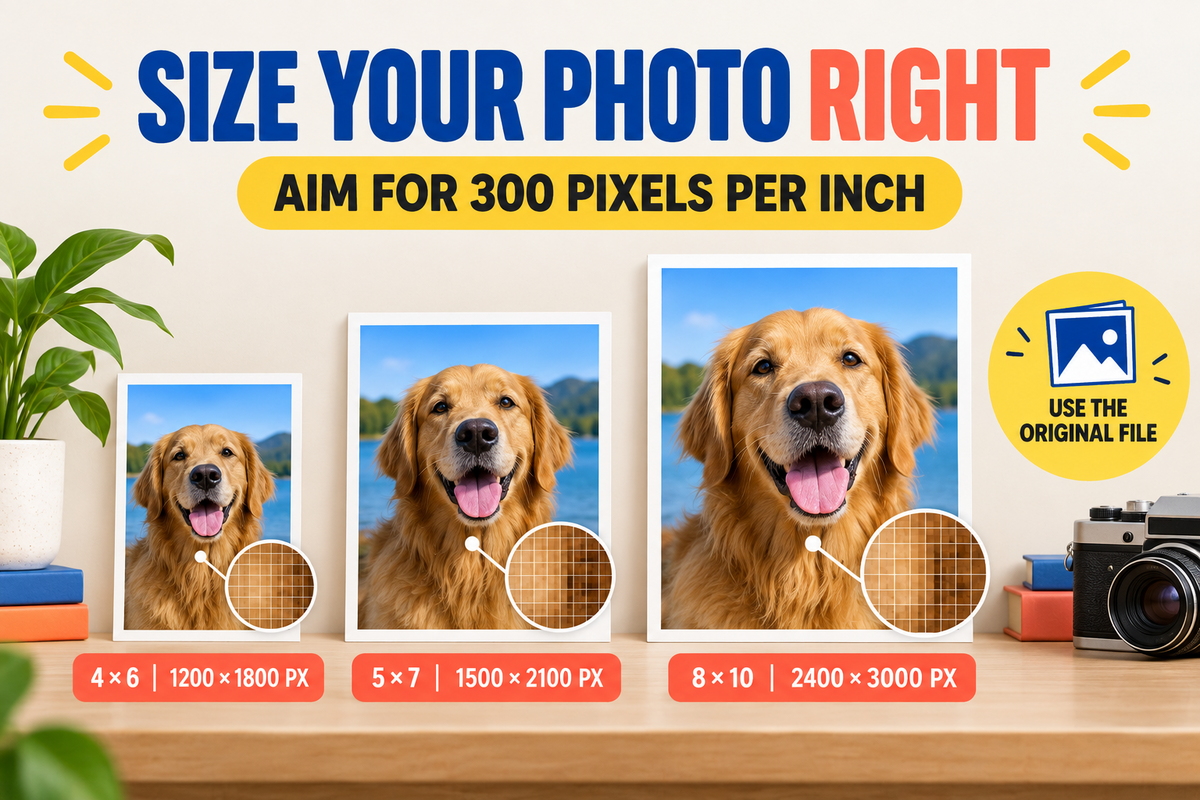
Resolution describes how much image detail is available. For high-quality photo printing, 300 pixels per inch at the finished size is an excellent target, although some images can still look good at a lower resolution depending on the subject, viewing distance, and printer.
These are useful targets:
| Print size | Ideal image dimensions at 300 PPI |
|---|---|
| 4 × 6 inches | 1200 × 1800 pixels |
| 5 × 7 inches | 1500 × 2100 pixels |
| 8 × 10 inches | 2400 × 3000 pixels |
A larger pixel count does not rescue a blurry original. Focus, motion blur, heavy digital zoom, and aggressive editing affect quality too. Resolution tells you how much information the file contains, not whether that information is sharp.
Canon also recommends aiming for 300 DPI at the final output size for high-quality results and cautions that excessive upscaling can introduce artifacts or artificial-looking sharpness.
Why does part of my photo get cropped?
The photo file and the paper do not always have the same shape. This is called the aspect ratio.
Many phones capture images in a 4:3 shape. A 4 × 6 print uses a 3:2 shape. A 5 × 7 and an 8 × 10 each have their own proportions. To fill the paper without blank borders, part of the image may need to be trimmed.
This matters most when a face, hand, sign, or other important detail sits close to the edge.
Before printing, decide whether you prefer:
- A full-bleed print that fills the paper and may crop part of the image
- The complete image with white borders where the shapes do not match
- A custom crop that protects the most important part of the photograph
Do not crop too tightly before submitting the file. Leave some breathing room so the image can be adjusted for the chosen print size.
Why does the printed photo look darker than the screen?
A phone or computer screen produces its own light. A print reflects the light in the room. That basic difference means the two will never behave exactly the same way.
A very bright display can make shadows appear more open and colors more luminous than they will look on paper. Editing a photo while the screen brightness is turned all the way up may lead you to darken the file unnecessarily.
Different devices also interpret color differently. Canon explains that cameras, monitors, and printers each handle color in their own way. Color management and ICC profiles help translate those colors through a shared color space, but a perfect visual match under every lighting condition is unrealistic.
For everyday prints, these habits help:
- Review the photo at a comfortable screen brightness
- Check whether faces have detail in both highlights and shadows
- Avoid extreme filters and heavy saturation
- Use the original color file when possible
- Tell the print team if accurate skin tones or specific colors are especially important
Dedicated photo printing is not the same as copier output
This is an important distinction at DH Solutions.
The store uses Canon printers specialized for quality photo printing, rather than simply sending photographs through the same office copier used for ordinary documents.
An office copier is designed to reproduce pages efficiently. It is excellent for reports, forms, presentations, and everyday color documents. A dedicated photo-printing workflow is built around photographic images, photo media, tonal transitions, and the settings needed to reproduce them well.
That does not mean every file will become perfect automatically. A printer cannot restore missing focus or create detail that was lost through compression. It does mean the photograph is being produced with equipment and media intended for photos, not treated as another sheet in a copy job.
Should you choose glossy or matte photo paper?
Neither finish is universally better. They create different experiences.
Glossy photo prints
Glossy paper often makes color appear more saturated and contrast feel stronger. It works well for bright travel images, family snapshots, celebrations, and photographs where vivid color is part of the appeal.
The tradeoff is reflection. Glossy surfaces can show glare, fingerprints, and handling marks more easily.
Matte photo prints
Matte paper reduces glare and has a softer, non-reflective appearance. It can be a strong choice for black-and-white photographs, portraits, artwork, displays under bright lights, or prints that will be handled frequently.
Colors and contrast may feel more restrained than on glossy paper. That is not necessarily lower quality. It is a different visual character.
Canon's current photo-printing guidance similarly notes that glossy papers generally strengthen saturation and contrast, while matte papers can soften tones and reduce glare.

What print size should you choose?
Think about where the photograph will live.
- 4 × 6: Everyday snapshots, albums, invitations, and small gifts
- 5 × 7: Desk frames, greeting cards, and portraits with more presence
- 8 × 10: Wall frames, memorial displays, gifts, and formal portraits
- Custom enlargement: Artwork, displays, large frames, or photographs meant to become a focal point
DH Solutions offers 4 × 6, 5 × 7, and 8 × 10 photo prints, plus custom enlargements. Color and black-and-white printing are available with glossy or matte finishes.
For a larger print, the file should be reviewed at the intended size. A photo that looks sharp at 4 × 6 may not hold the same detail when enlarged dramatically.
Do photos from a phone print well?
Yes. Modern phones can produce excellent photo prints, especially when you use the original image and choose a sensible print size.
Problems usually come from the way the file was handled, not simply because it came from a phone. Digital zoom, low light, motion, screenshots, message compression, and repeated editing can all reduce quality.
If you are unsure whether the file can support the size you want, upload it before committing. A quick review can help identify resolution or cropping concerns.
What should you include with your print request?
The clearer the instructions, the easier it is to produce the result you expect.
Include:
- Your original or highest-quality image file
- Desired print size
- Quantity
- Glossy or matte finish
- Color or black and white
- Whether borders are acceptable
- Any cropping instructions
- Your preferred pickup time
Use the DH Solutions print quote and file-upload form to attach up to five files, with a limit of 50 MB per file, and describe exactly what you want. The team will review the files and follow up with pricing before production begins.
If you need photo printing in Huntsville, AL, same-day pickup is available for supported orders. Timing can depend on the quantity, size, file readiness, and current workload, so submit early when the photos are needed for an event.
You can also visit DHSolutions Pack, Ship, N Print at 7900 Bailey Cove Road SE, Suite 8A, Huntsville, AL 35802, or call 256.800.6844.
Your favorite photograph deserves better than a screenshot sent to a random copier. Start with the strongest file you have, make thoughtful choices about size and finish, and let equipment designed for photo output handle the rest.
Frequently asked questions
What file type is best for printing photos?
A high-quality JPG is suitable for most everyday photo printing. PNG and TIFF files may also work. File quality, resolution, and proper color handling matter more than choosing a format by name alone.
What resolution is best for an 8 × 10 photo?
For a high-quality 8 × 10 print, 2400 × 3000 pixels provides 300 pixels per inch. A smaller file may still be printable, but the result depends on the image, viewing distance, and amount of enlargement.
Why are the edges missing from my printed photo?
The image and paper probably have different aspect ratios. Filling the entire paper requires some cropping. Ask for borders or a custom crop if preserving every part of the original image is more important than edge-to-edge printing.
Is glossy or matte better for photo prints?
Glossy often produces stronger-looking color and contrast, while matte reduces glare and fingerprints. The best choice depends on the image, display lighting, and personal preference.
Can DH Solutions print pictures directly from my phone?
Yes. Bring your device or upload the original image file through the print quote form. Avoid sending a screenshot when the full-resolution photo is available.
Does DH Solutions use a regular copier for photo prints?
No. DH Solutions uses Canon printers specialized for quality photo printing. Photographs are not simply treated as ordinary copier pages.
Can I get same-day photo prints in Huntsville?
DH Solutions lists same-day photo printing and pickup. Availability can depend on the order size, requested format, file readiness, and current production workload.